Post Form
Similar to Post Disbursements form, Post Firm Cheques form has 3 sections Header, Expense and Firm Expense and of course Cheques, which is similar to the original Post Firm Cheques form on eQx.
Header

The header of the form is pre-filled as shown in the screenshot. The Post Firm Cheques form can only be submitted when the following criteria are met:
- At least one cheque has been added
- Batch Proof Amount must be zero
Cheque

Every time you open the Post Firm Cheques form, a Cheque is always added by default.
As seen in the screenshot, the Add Cheque button is currently disabled. In order to enable it, you have to add at least an Expense or Firm Expense to the current cheque.
One new column we added to this redesign of Post Firm Cheques form is the Ref # column. This value is used to match the cheque with its Expenses and Firm Expenses.
Print Cheques
One important feature on Post Firm Cheques form is you can print the cheques. In order to print a cheque, you need to check the Print checkbox for that cheque before submitting.
Each requested print cheque will be opened in a tab.
NOTE: Make sure to "Allow pop-ups" for our website from your browser settings to ensure cheque files are properly served.
Cheque Filter

We already talked about the Ref # column. We have a filter for this Ref # where you can filter the Expenses and Firm Expenses of the same Ref #. You can fight it on the right hand side of the Expense & Firm Expense block.
Expense

Above is the Expense section. You can add a new record by clicking the plus button.
A new expense record will be added in the state shown above. Due to the number of fields in an Expense record, you may need to scroll horizontally to see the full row, depending on your screen size.
Fields on an Expense record can be filled in normally. Auto-fill and tab flow are carried over from the original eQx application for users already accustomed to tab navigation.
The Ref #, as mentioned above, is also a column in the Expense record. And you can actually select which cheque an Expense belongs to.
Expense Tax Breakdown
Some Tax Groups, when selected, will allow you to enter detailed tax information.

In this example, the Tax Group BOTH is selected. To enter the Tax Detail, navigate to the end of the row, where the Expense Tax button is located. You can modify the amount for each Tax Type row, and the total tax amount will update accordingly.
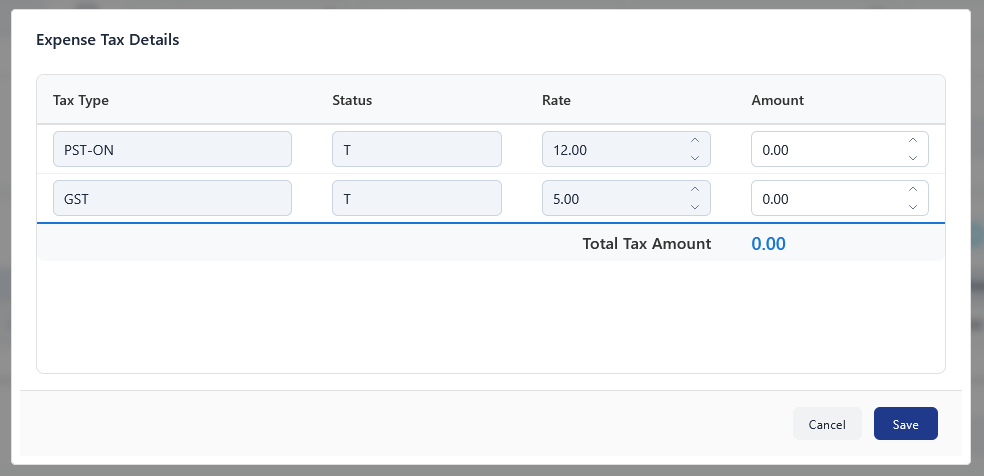
Click Save, and the Tax Amount field on the record will be updated as well.
Firm Expense

Similar to the Expense section, you can add a new Firm Expense record using the plus button. Many fields will be auto-filled for you.
The Ref #, as mentioned above, is also a column in the Expense record. And you can actually select which cheque an Expense belongs to.
Firm Expense Tax Breakdown
This feature works exactly the same as the one in the Expense section.
Validations and Submission

Validations have been implemented for the redesigned forms on eQ+. For Post Firm Cheques, a validation summary appears at the top of the form after a submission attempt if any fields contain issues.

Fields with issues are also highlighted with a red border. Resolving an issue will automatically remove the red border from that field.
After resolving all flagged fields, click Submit again. A successful submission will display a toast message with the following content.