User Management
Overview
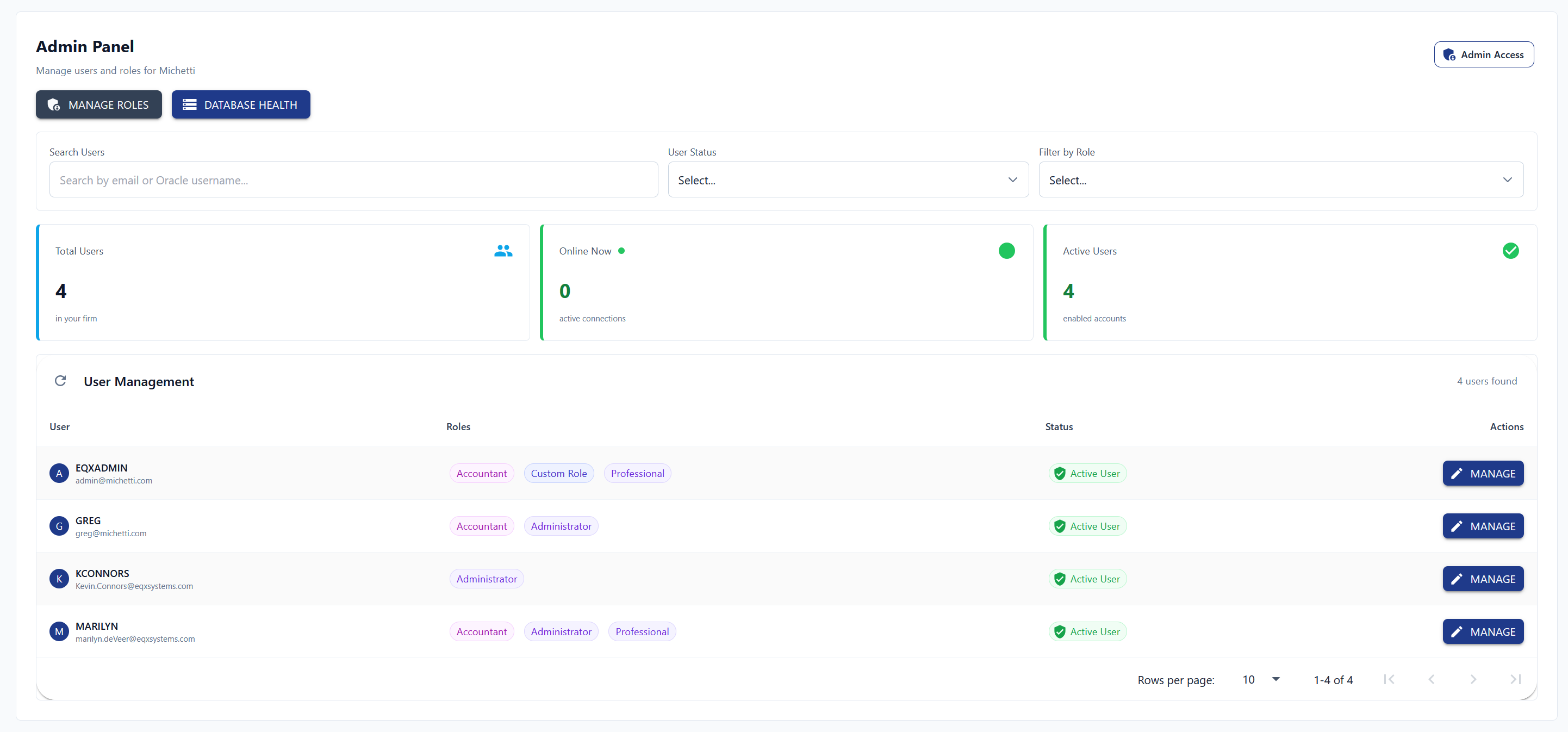
The User Management panel gives Firm Admins a centralized view of every user in the firm — including their status (active, online, unconfirmed) — and tools to manage them.
You must have the Administrator role to access this panel.
Managing a User
- Find the user in the list and click "MANAGE USER".
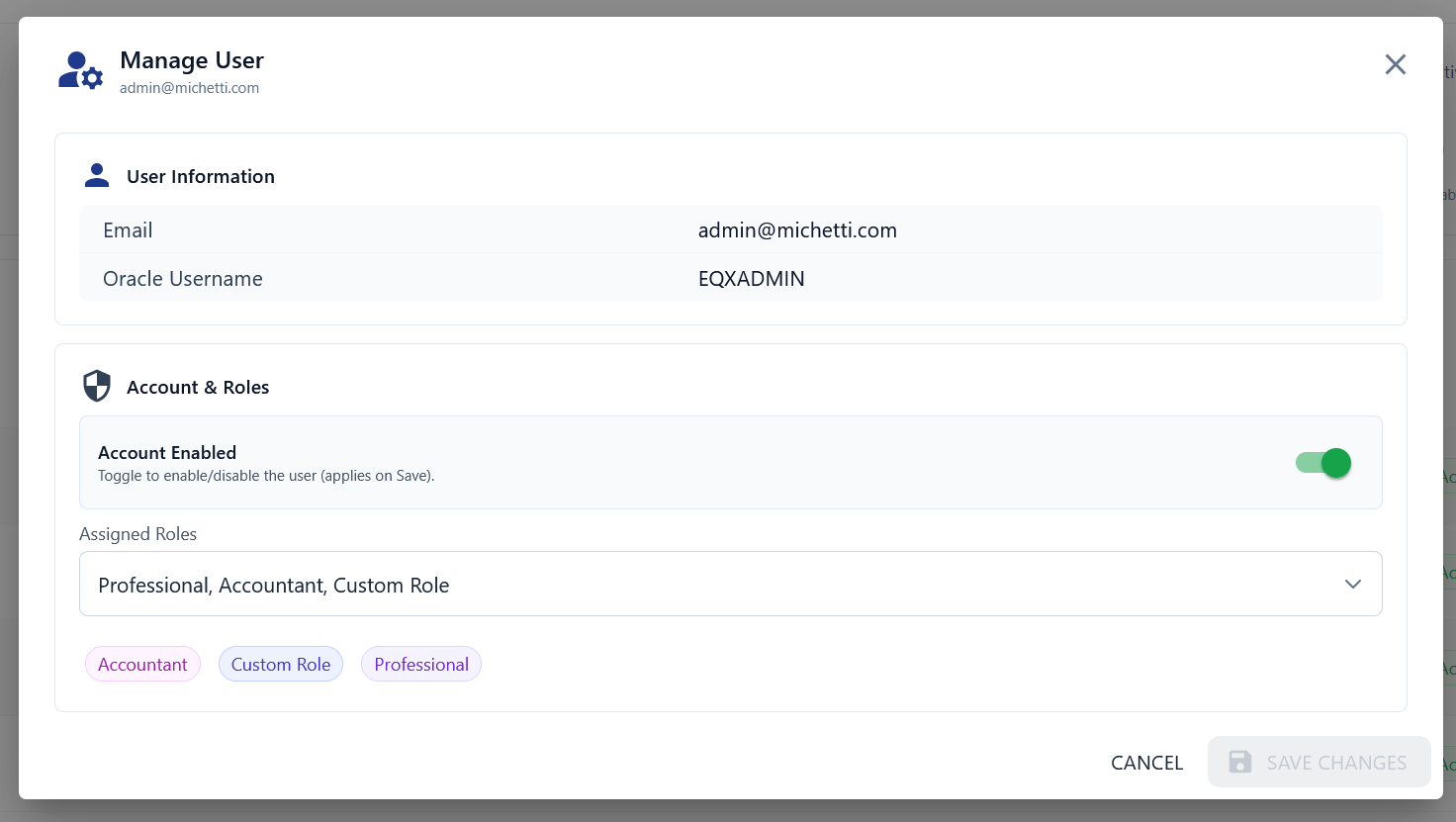
- A management window opens with the following options:
| Action | Effect |
|---|---|
| Enable / Disable | Disabling a user immediately kicks them out of eQ+ |
| Change Roles | Updated roles take effect within 3 seconds — the user's page auto-refreshes |
Re-sending a Confirmation Email
If a user registered but never confirmed their email, you can resend it:
- Locate the unconfirmed user in the list.
- Click the "Resend Confirmation" option (only visible for users who haven't confirmed yet).

Managing Roles
Custom roles control which forms, reports, and databases a user can access.
- Click "MANAGE ROLES" in the top-left corner.
- From here you can create, edit (pen icon), or delete (trashcan icon) roles.
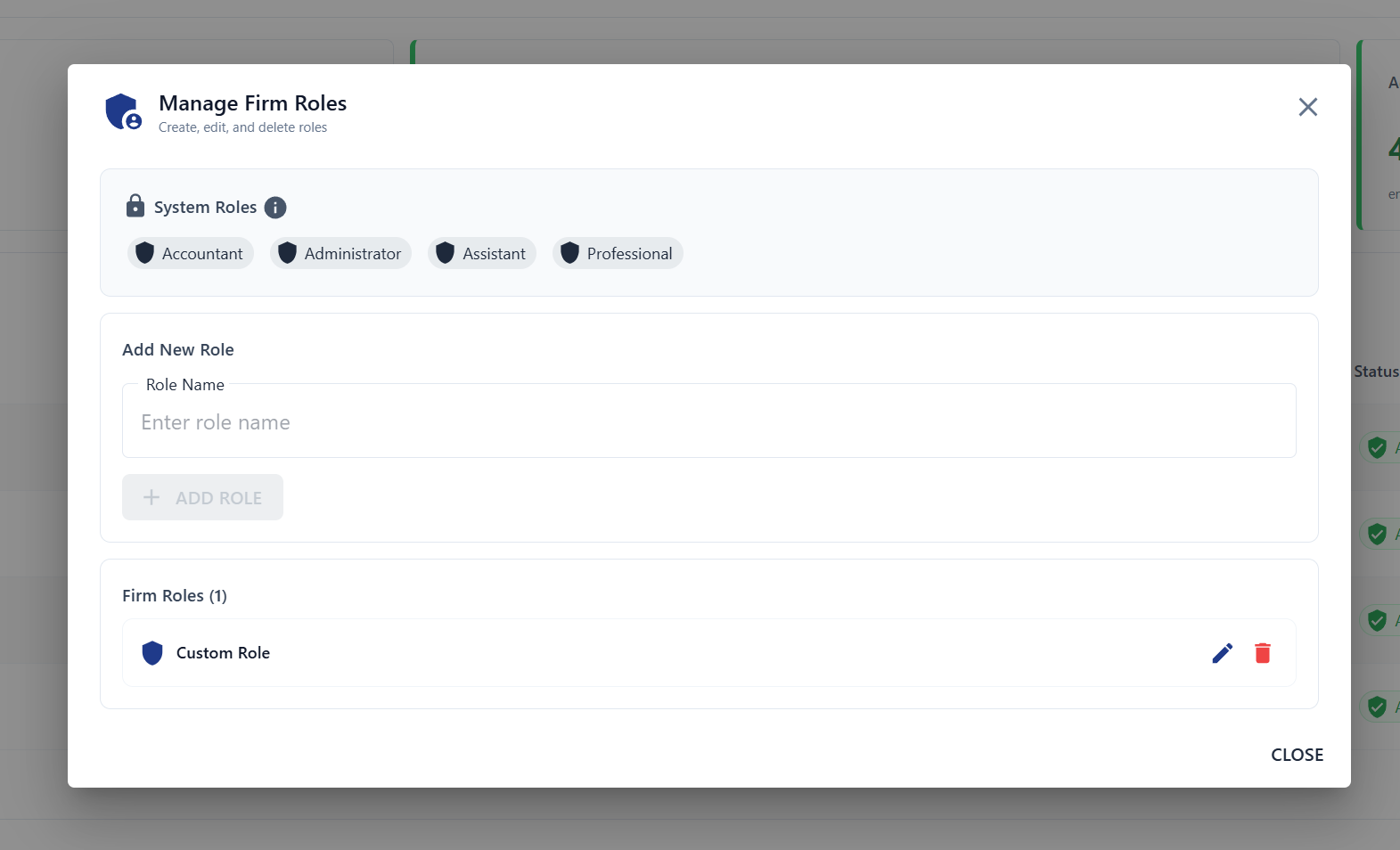
Once a role is created, you can assign it to users and configure its permissions in Role Management.
Checking Database Health
If eQ+ feels slow, the database connection may be the cause. Since eQ+ and the legacy eQx currently share the same database, performance can vary.
-
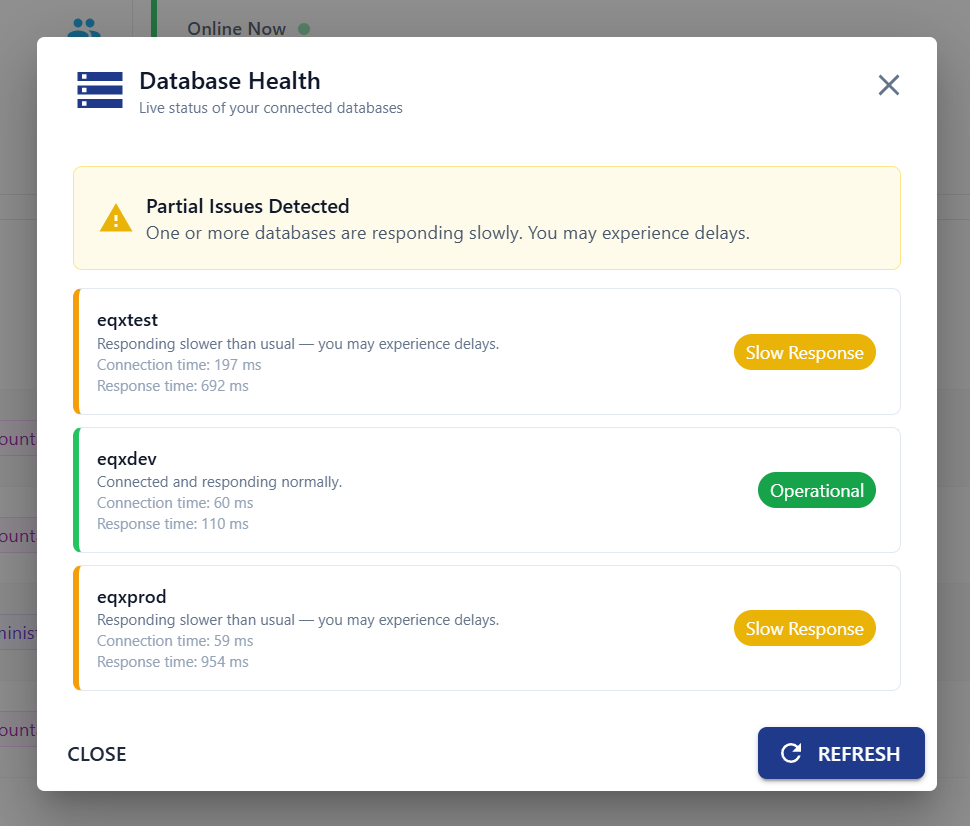
Click "DATABASE HEALTH" in the top-left corner.
-
Review the response times displayed.
-
Click "Refresh" several times to confirm the results are consistent.
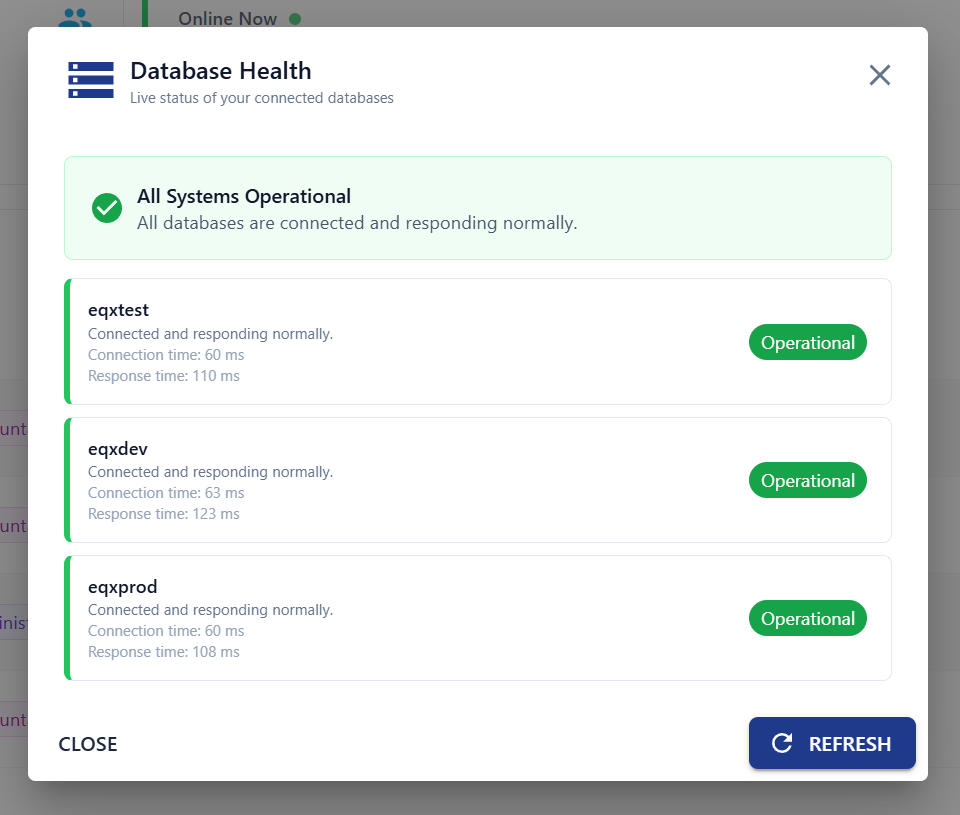
If the health check consistently shows slow responses, contact support@eqxsystems.com for assistance.