Creating Dockets & Timers
This page covers how to add new time dockets and work with live timers.
Adding a New Docket
-
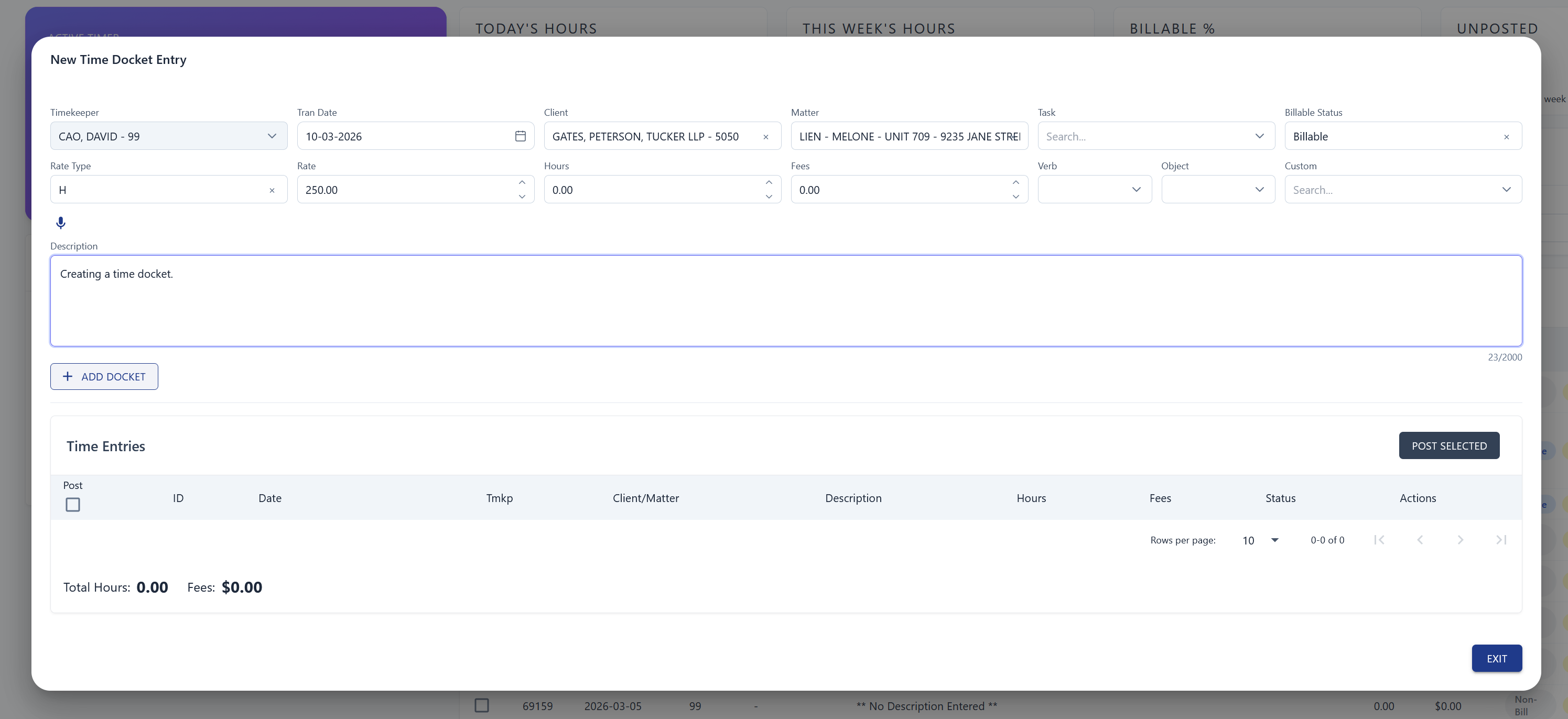
Click "+ NEW DOCKET" in the top-right corner of the Time Recorder.
-
Fill in the docket details — Client, Matter, task, status, rate, hours, fees, etc.
tipThe rate is automatically pulled from the selected matter, so you don't need to enter it manually.
-
Click "ADD DOCKET" below the description field to save.
Working with Active Timers
Professional users can run multiple timers simultaneously. Active timers appear in the top bar of eQ+ — click any timer to make it your primary.
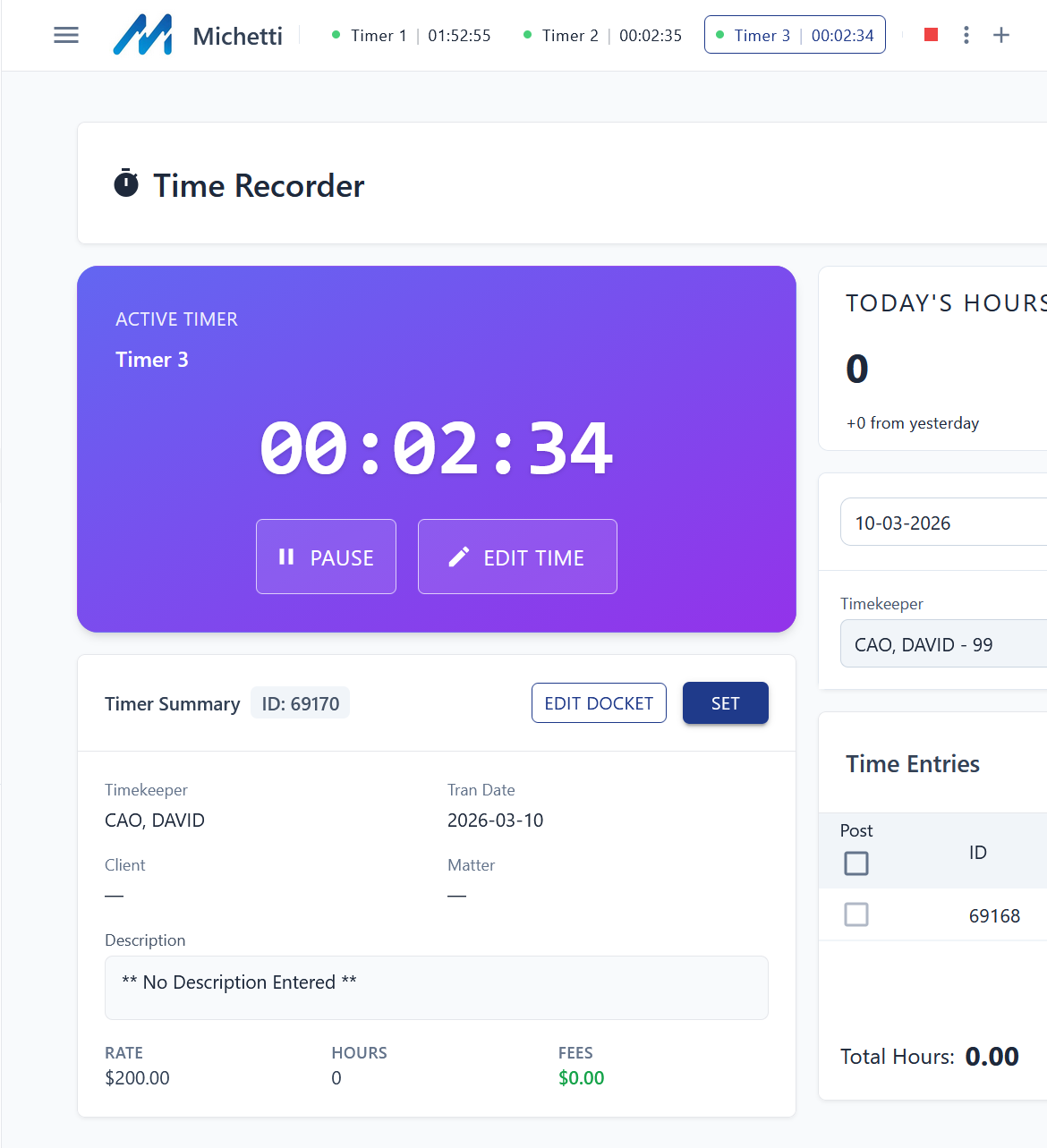
Each active timer has three controls:
| Button | What It Does |
|---|---|
| EDIT TIME | Adjust the elapsed time (e.g. change 2 minutes to 2 hours) |
| EDIT DOCKET | Modify the client, matter, and other docket fields |
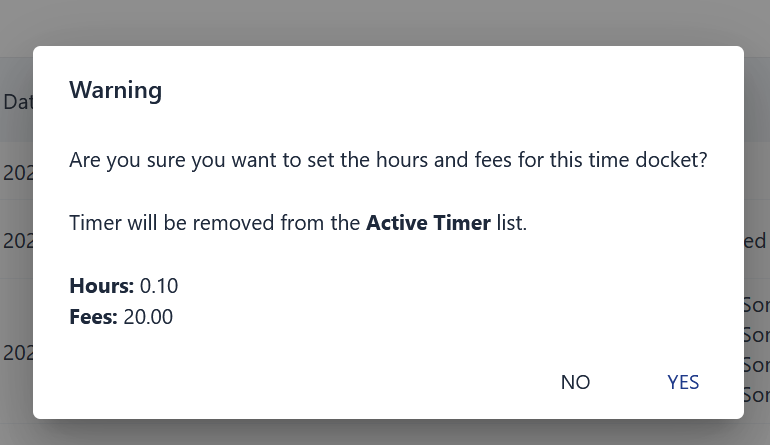
| SET | Stop the timer and commit the docket to the database |
When you click "SET", the time is rounded up based on your firm's settings, the timer is removed from the top bar, and the docket is finalized.