Organizing Reports
Keep your report list manageable by favouriting the ones you use most and grouping them into custom folders.
Favouriting a Report
-
Select a report from the list to open its parameters.
-
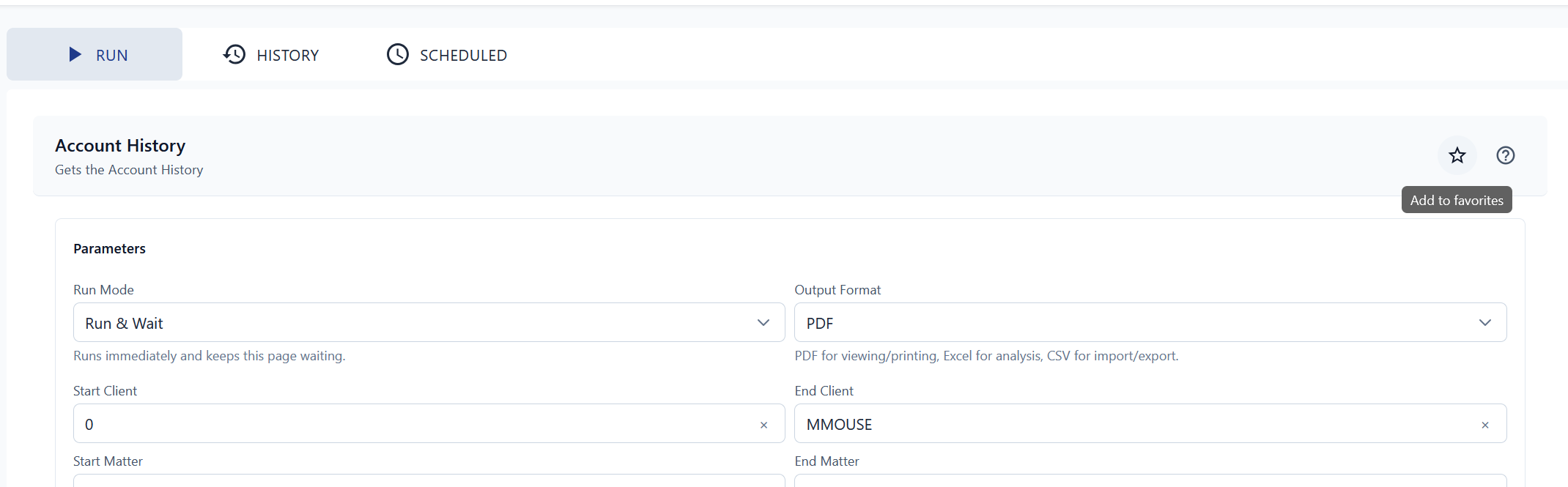
Click the star icon at the top-right of the report parameter section.
-
Favourited reports display with a light yellow background and appear at the top of the list.
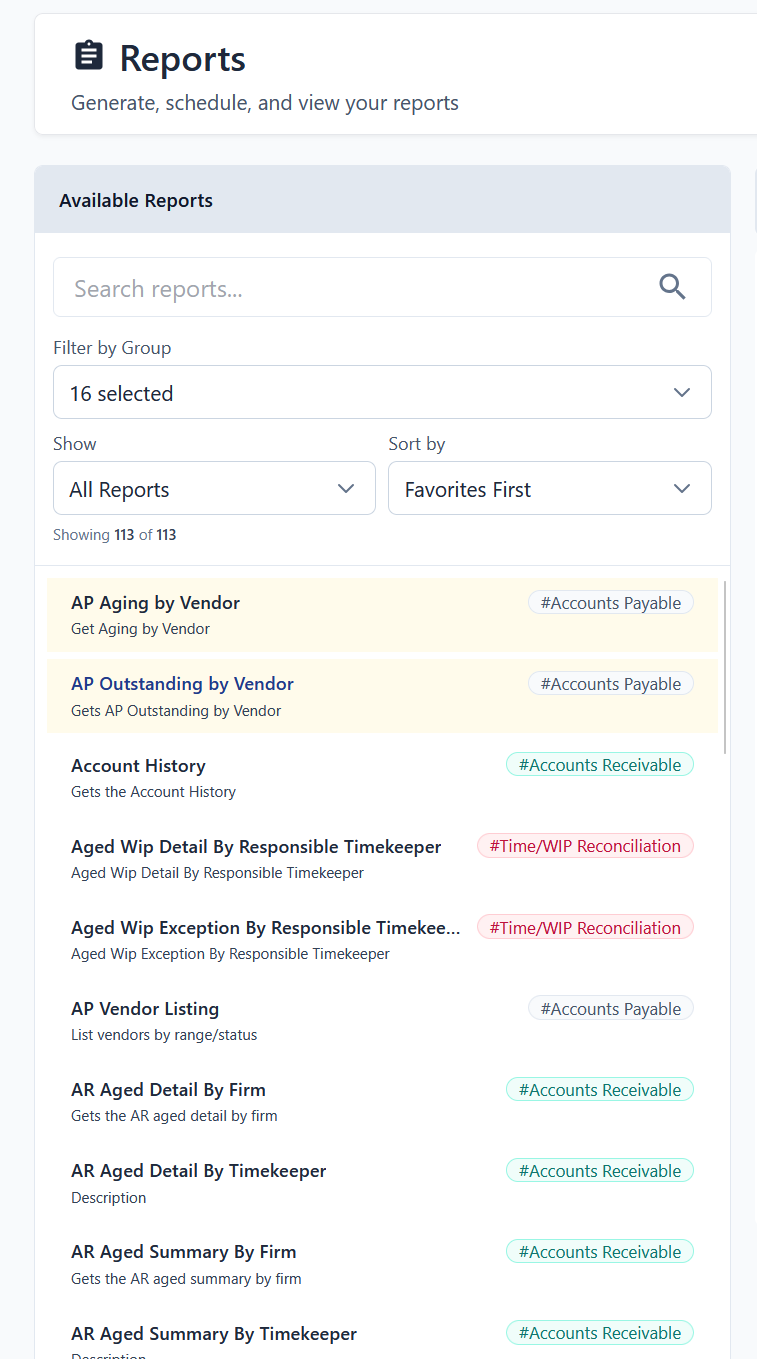
Use the sort toggle to switch between sorting by favourites or by alphabet.
Creating Folders
Folders let you group related reports together for quick access.
-
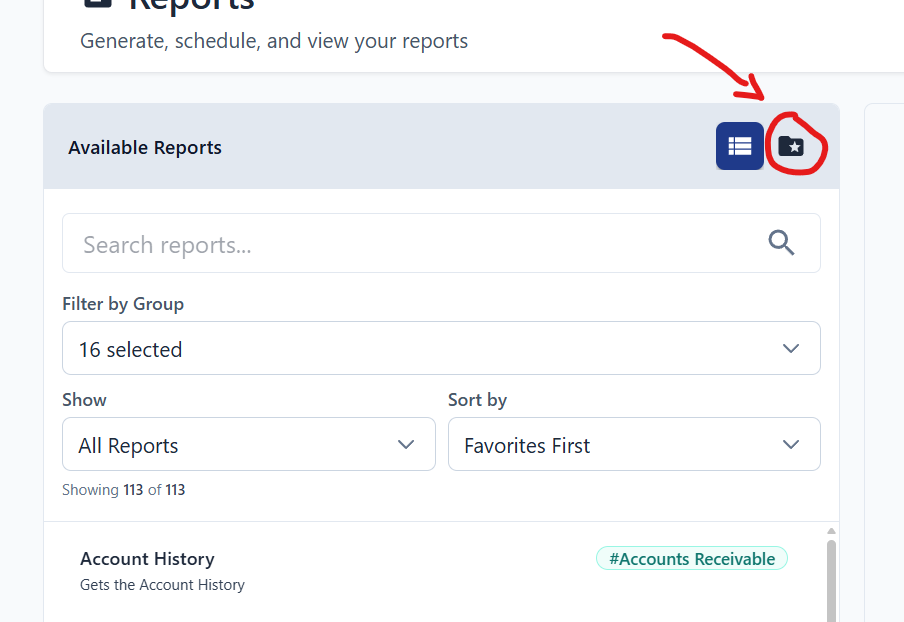
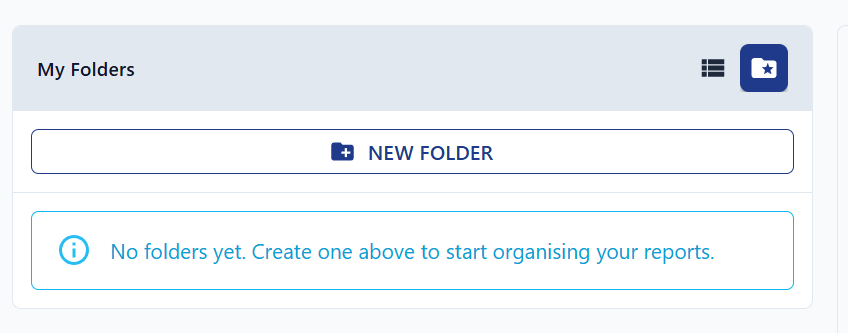
Click the Folder icon at the top-right of the Report List.
-
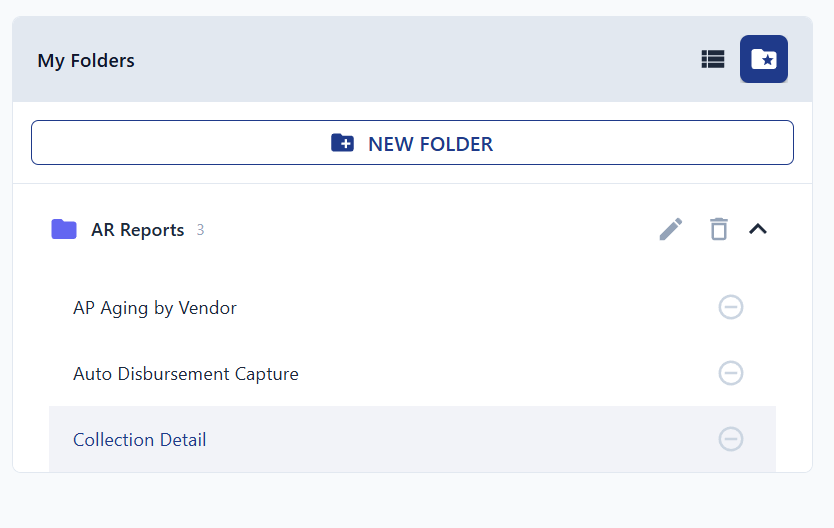
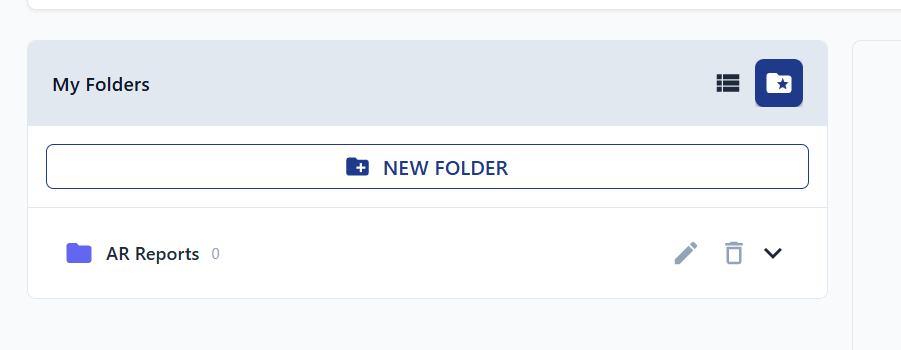
Click "NEW FOLDER" and give it a name.
-
Create as many folders as you need.
Adding Reports to a Folder
-
Go back to the full report list, then select a report.
-
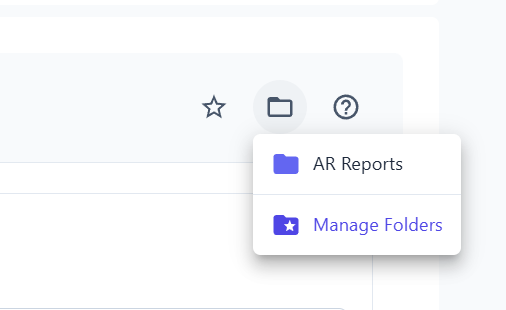
Click the Folder icon next to the Favourite star at the top-right of the report title.
-
Choose the target folder from the dropdown.
-
Switch to the Folders tab to confirm the report appears in the correct folder.